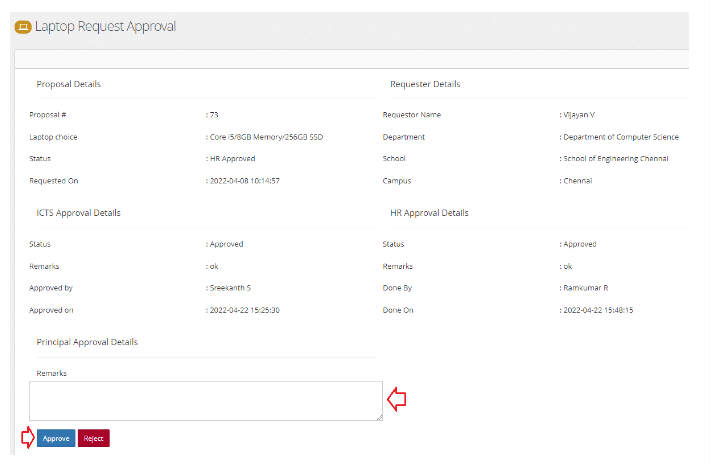
Approval stages of the Laptop request
Introduction
HRMS is an indigenous application which helps the Organization to accumulate and maintain the Human Resource data. This document describes how the laptop request passes through different approval stages. There are three approval stages through which the staff's laptop request has to get through.
ICTS Approval
HR Approval
Head of the Institution / Principal Approval
Let us go through each approval one by one.
Getting Started:
Access Human Resource Management System
Open an internet browser (Recommended to use Google Chrome)
Type https://my.amrita.edu/ and click enter
Login with your amrita email id and password.
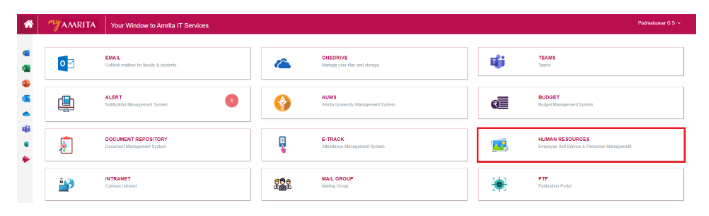
Click HUMAN RESOURCES.
ICTS Approval:
The ICTS-admin will do the laptop request approval on bahalf of the ICTS department.
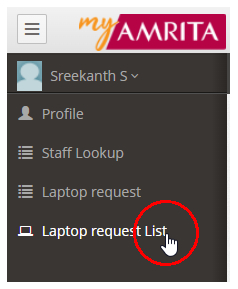
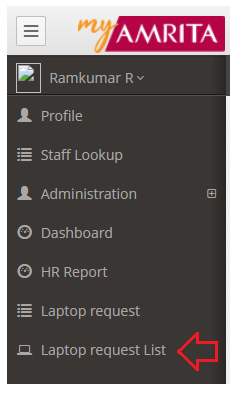
Once the ICTS-admin login, click on Laptop request list at the left side menu.
The list of laptop request will be displayed with the tab name as ICTS.
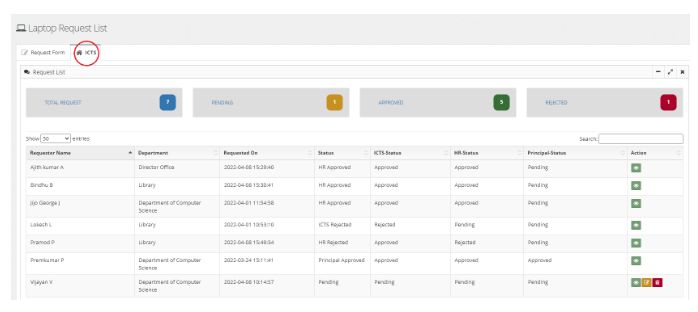
Click on Pending count to display the list of approval pending requests alone.
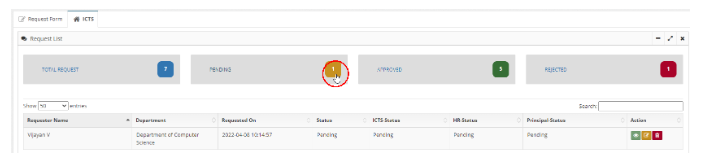
Click on the view button against the request to open and view the details.

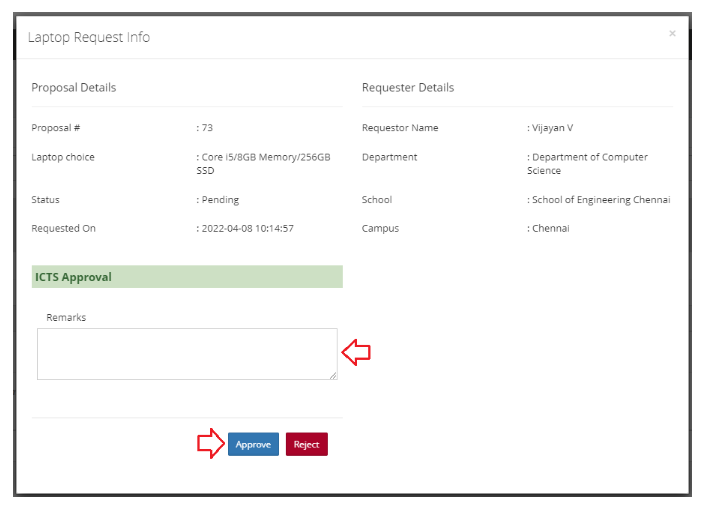
Laptop request Info page will open. Add Remarks and click Approve.
Apparently, icts admin can reject the request by clicking Reject button if required.
HR Approval:
Once the ICTS-admin approves the request, HR-admin needs to approve to proceed further.
Login as HR-admin, click on the Laptop request list at the left side menu.
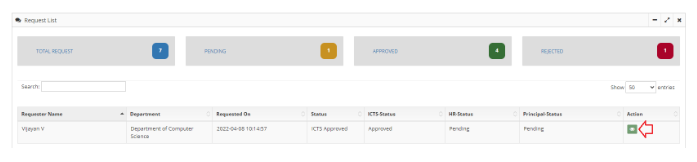
The list of laptop request will be displayed with the tab name as HR.
Click on Pending count to display the list of approval pending requests alone.

Click on the view button against the request to open and view the details.
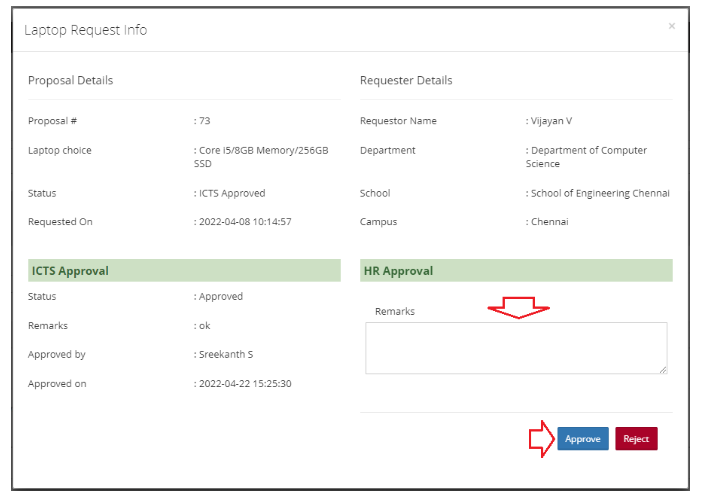
Laptop request Info page will open. Add Remarks and click Approve.
Apparently, HR admin can reject the request by clicking Reject button if required.
Head of the Institution / Principal Approval
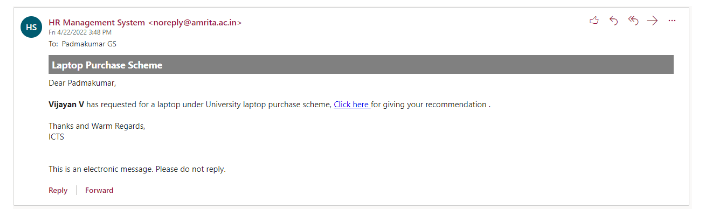
Once the HR-admin approves, an automatic email will be send to the Head of the Institution / Principal.
Click on the Click here link in the email body to open the Laptop request approval page.
Add remarks in the remarks text box. Click Approve button.
Head of the Institution / Principal can reject the request by clicking Reject button if required.